

File Upload
The File field handles single and multiple file uploads with drag-and-drop, image previews, validation, temporary upload support, and optional direct-to-storage uploads. Files use temporary uploads by default: they are sent to the server before the form is submitted, and the form submits an encrypted temporary upload token.
Basic Usage
use InertiaUI\Forms\Fields\File;

File::make('document');
The field starts empty. By default, selecting a file uploads it to the built-in temporary upload route immediately. The final form request receives an encrypted upload token.
Single-file fields submit one token or null. Multiple fields submit an ordered array of tokens, or null after every item is removed.
After validation, read submitted temporary uploads with $form->upload('document') for one file or $form->uploads('attachments') for multiple files. Pass files: false to validated() before mass assigning model attributes. The request's file() method is only for fields using storeWithForm().
Storing Uploaded Files
The default File::make() flow stores selected files temporarily before submit. Store the resolved upload after validation and keep temporary token strings out of mass assignment with validated(files: false):
use App\Forms\ProfileForm;
use InertiaUI\Forms\Validate;

public function update(#[Validate] ProfileForm $form, Profile $profile)
{
    $profile->update($form->validated(files: false));

    $avatar = $form->upload('avatar');

    if ($avatar) {
        $profile->forceFill([
            'avatar_path' => $avatar->store('avatars', 'public'),
        ])->save();
    }

    return back();
}
upload() returns one SubmittedUpload or null. The store() and storeAs() helpers persist new uploads through Laravel's filesystem and remove the temporary source after successful storage.
For multiple fields, uploads() returns the submitted files in UI order:
use InertiaUI\Forms\FileUploads\SubmittedUpload;

$paths = $form->uploads('attachments')
    ->map(fn (SubmittedUpload $upload) => $upload->store('attachments', 'public'))
    ->all();
Save the returned paths on your model or related records. Spatie Media Library fields use the collection sync shown below instead of manual path storage.
Accept and Image
Restrict which file types are accepted:
// Specific MIME types
File::make('document')->accept([
    'application/pdf',
    'application/vnd.openxmlformats-officedocument.wordprocessingml.document',
]);

// Shorthand for images
File::make('avatar')->image();
The image() method sets the accept to image/* and adds the image validation rule. The accept() method adds a mimetypes validation rule.
Multiple Files
Allow uploading more than one file:
File::make('attachments')->multiple();Max Files
Limit the number of files:
File::make('photos')
    ->multiple()
    ->maxFiles(5);
File Size
Set minimum and maximum file sizes in kilobytes:
File::make('upload')
    ->maxSize(5120)  // 5MB max
    ->minSize(10);   // 10KB min
These add max and min validation rules for the file.
Image Dimensions
Constrain image dimensions. These add Laravel's dimensions validation rule.
Exact Dimensions
File::make('icon')
    ->image()
    ->dimensions(width: 512, height: 512);
Min/Max Dimensions
File::make('banner')
    ->image()
    ->minDimensions(width: 800, height: 200)
    ->maxDimensions(width: 2000, height: 600);
You may mix width and height constraints:
File::make('photo')
    ->image()
    ->minDimensions(width: 400)
    ->maxDimensions(width: 2000, height: 2000);
Preview
Image previews are shown by default. Hide them:
File::make('document')->hidePreview();

// Or use the explicit method
File::make('document')->showPreview(false);
File Size Display
File sizes are hidden in uploaded item cards by default. Show them when the field needs that detail:
File::make('gallery')
    ->multiple()
    ->showFileSize();
Reorderable
Allow users to reorder uploaded files with move buttons or drag and drop (multiple mode):
File::make('gallery')
    ->multiple()
    ->reorderable();
Item Layout
Choose how the list of uploaded files is presented. This is presentation-only. It does not affect the upload path, validation, or how submitted values are serialized. It is distinct from the field-presentation layout() (stacked/inline/split), which arranges the field label and control.
List
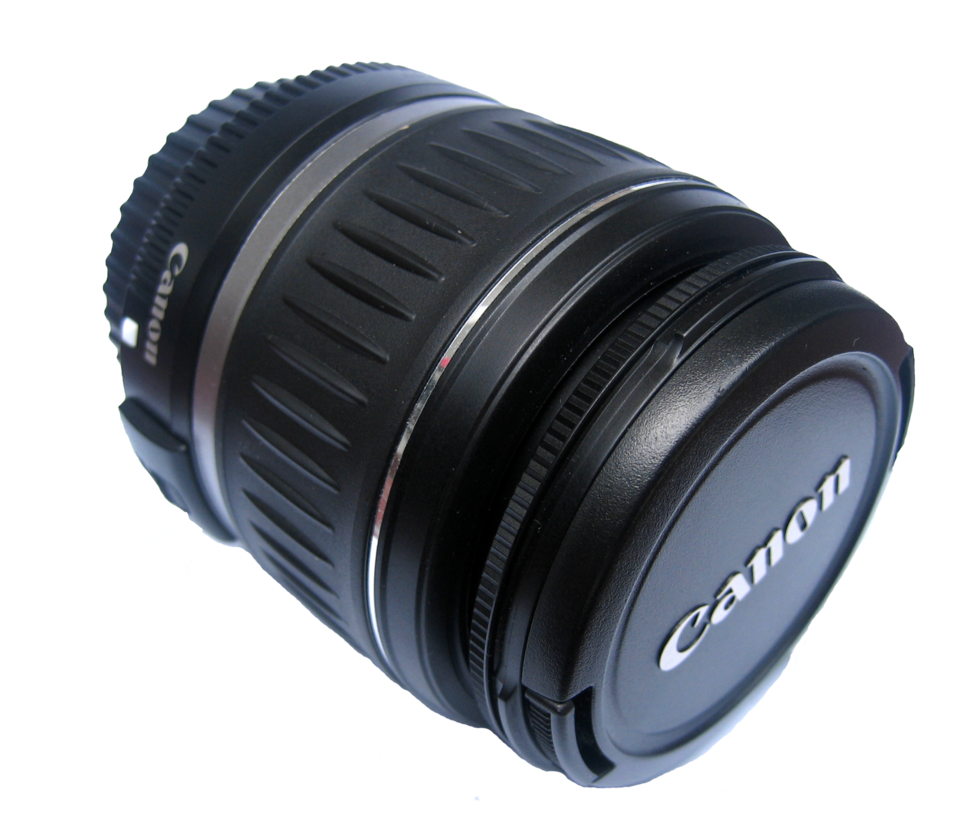
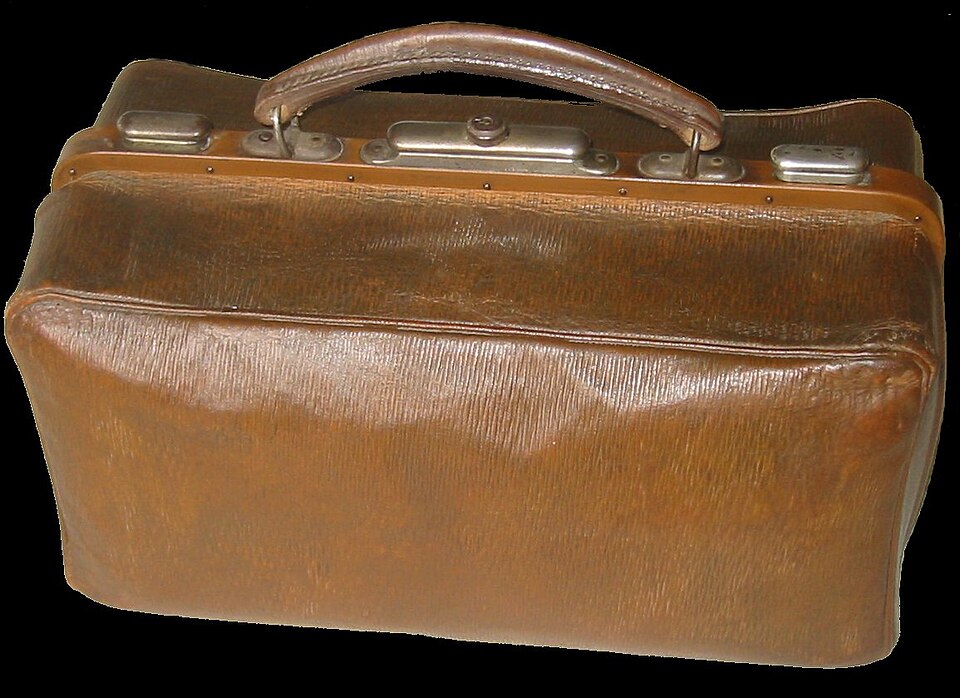
list is the default layout. It renders full-width rows with preview, name, and actions.

notebook.jpg
54.7 KB
camera-lens.png
722.7 KB
travel-bag.jpg
132.8 KB
File::make('gallery')
    ->multiple()
    ->maxFiles(3)
    ->showFileSize()
    ->reorderable();
Compact
compact uses tighter rows with reduced padding. It keeps the same mechanics as list.
notebook.jpg
54.7 KB
camera-lens.png
722.7 KB
travel-bag.jpg
132.8 KB
File::make('gallery')
    ->multiple()
    ->maxFiles(3)
    ->showFileSize()
    ->reorderable()
    ->itemLayout('compact');
Grid
grid renders a thumbnail/item grid suited to multiple image fields.
notebook.jpg
54.7 KB
camera-lens.png
722.7 KB
travel-bag.jpg
132.8 KB
File::make('gallery')
    ->multiple()
    ->maxFiles(3)
    ->showFileSize()
    ->reorderable()
    ->itemLayout('grid')
    ->itemColumns(3);
Use itemColumns(2) or itemColumns(3) when a grid should keep a stable card width instead of stretching the remaining items across the whole row. The value is the maximum column target. The grid still drops to fewer columns when the container is too narrow for that target.
All actions (remove, retry, move up/down, browse/dropzone) stay keyboard reachable in every layout, and reordering still works in grid through the existing move buttons. There is no drag-only dependency. Invalid values throw an InvalidArgumentException.
Upload Paths
The default upload path stores selected files temporarily before the form is submitted. The final form request receives encrypted temporary upload tokens in the current UI order.
Use File Uploads for transport setup beyond the default path, including custom temporary upload URLs, named upload routes, chunked(), directToStorage(), direct upload disks, multipart tuning, upload validators, and token validation.
Store With The Form
storeWithForm() keeps newly selected files as native multipart File values until the final form request. This is useful for small create forms that do not need existing-file preservation:
File::make('avatar')
    ->label('Avatar')
    ->help('The selected file stays local until the form is submitted.')
    ->image()
    ->storeWithForm();
storeWithForm() submits a native multipart file, so store it with Laravel's request file API:
use App\Forms\ProfileForm;
use Illuminate\Http\Request;
use InertiaUI\Forms\Validate;

public function update(
    Request $request,
    #[Validate] ProfileForm $form,
    Profile $profile,
)
{
    $profile->update($form->validated(files: false));

    if ($request->hasFile('avatar')) {
        $profile->forceFill([
            'avatar_path' => $request->file('avatar')->store('avatars', 'public'),
        ])->save();
    }

    return back();
}
The Form upload helpers return null in this mode because there is no temporary upload token to resolve.
Existing File Disk
Set disk() when a bound model stores existing files on a disk other than public. The disk is used to turn saved paths into browser previews for edit forms:
File::make('document')->disk('s3');Direct-to-storage upload disks and multipart tuning are covered in File Uploads.
Spatie Media Library
For models that use Spatie Media Library, associate the upload with a media collection:
File::make('photos')
    ->multiple()
    ->mediaCollection('product-images');
A bound model automatically loads existing media from the collection as the field's value. Calling Form::save() persists ordinary attributes first and then syncs every submitted File field that declares a media collection:
use App\Forms\ProductForm;
use InertiaUI\Forms\Validate;

public function update(#[Validate] ProductForm $form, Product $product)
{
    $form->save($product);

    return back();
}
The submitted files are the collection's complete contents. Any media missing from the field is deleted, and retained media follows the submitted order. Do not share the collection with another field or feature. An absent File field leaves its collection untouched.
The same configuration works on a File field declared directly inside a Repeater or Blocks schema. All submitted instances of that schema field share the configured collection. Form::save() stores durable references in the parent array or JSON attribute so each file remains associated with its row or block. The parent model attribute needs an array or JSON-compatible cast. Binding resolves the references back to normal existing file values.
Automatic Media Library syncing expects the field's normal temporary upload tokens. A field using storeWithForm() submits native multipart files instead, so Form::save() rejects that combination. Store those files through Laravel's request file API or use the default temporary upload path.
Pass Media Library storage options to mediaCollection() when the automatic write needs a different destination disk, responsive images, or per-file customization:
use InertiaUI\Forms\FileUploads\SubmittedUpload;
use Spatie\MediaLibrary\MediaCollections\FileAdder;

File::make('photos')
    ->multiple()
    ->mediaCollection(
        collection: 'product-images',
        disk: 'media',
        responsiveImages: true,
        configure: function (FileAdder $adder, SubmittedUpload $upload): void {
            $adder
                ->usingName($upload->getUploadedFile()->getClientOriginalName())
                ->withCustomProperties(['source' => 'product-form']);
        },
    );
These options stay on the server and apply to each new Media item. The disk argument is the Media Library destination. File::disk() still controls how ordinary path-backed model values are resolved for previews.
Manual validated(), upload(), richText(), and MediaLibraryUploads::syncCollection() workflows remain available when the application owns the persistence sequence. File collections and filesystem writes are not transactionally rolled back with model attributes. Collection cleanup runs after the corresponding model values are saved. A failure in one media field may happen after earlier fields have already been persisted.
The Spatie Media Library guide covers responsiveImages: true, the configure callback, custom Media properties, queue selection, preview conversions, and temporary-file cleanup.
Product Photo Upload
File::make('photos')
    ->label('Product Photos')
    ->help('Upload up to 8 images, max 5MB each')
    ->image()
    ->multiple()
    ->maxFiles(8)
    ->maxSize(5120)
    ->minDimensions(width: 400, height: 400)
    ->maxDimensions(width: 4000, height: 4000)
    ->reorderable()
    ->mediaCollection('product-images')
    ->required();
Shared Field APIs
File upload fields also use Form Class for labels and help text, Model Binding for default() and bound values, Validation for rules and precognition, Conditional Visibility, Authorization, and Styling for classes, layout, and part classes.
Using the Component Directly
You may render FileUpload outside the generated <Form> with local state. Upload transports use the serialized props described in File Uploads.
<script setup lang="ts">
import { shallowRef } from 'vue'
import { FileUpload, type FileUploadValue } from '@inertiaui/form-vue/components'
import type { ExistingFile } from '@inertiaui/form-vue'

const gallery = shallowRef<FileUploadValue>(null)

const existingGallery: ExistingFile[] = [
    {
        key: 'gallery/product-cover.jpg',
        name: 'Product cover.jpg',
        size: 428000,
        mimeType: 'image/jpeg',
    },
]

const fileParts = {
    item: 'bg-white',
    preview: 'ring-1 ring-zinc-200',
    feedback: 'text-sm',
}
</script>

<template>
    <FileUpload
        v-model="gallery"
        id="gallery"
        name="gallery"
        label="Gallery"
        help="Upload up to five product images."
        :accept="['image/*']"
        :multiple="true"
        :max-files="5"
        :max-size="2048"
        :show-preview="true"
        :show-file-size="true"
        :existing-files="existingGallery"
        :reorderable="true"
        item-layout="grid"
        :item-columns="3"
        :store-with-form="true"
        wrapper-class="max-w-2xl"
        control-class="bg-white"
        :part-classes="fileParts"
    />
</template>import { useState } from 'react'
import { FileUpload, type FileUploadValue } from '@inertiaui/form-react/components'
import type { ExistingFile } from '@inertiaui/form-react'
const existingGallery: ExistingFile[] = [
{
key: 'gallery/product-cover.jpg',
name: 'Product cover.jpg',
size: 428000,
mimeType: 'image/jpeg',
},
]
const fileParts = {
item: 'bg-white',
preview: 'ring-1 ring-zinc-200',
progress: 'h-2',
feedback: 'text-sm',
}
export default function GalleryUpload() {
const [gallery, setGallery] = useState<FileUploadValue>(null)
return (
<FileUpload
value={gallery}
onValueChange={setGallery}
id="gallery"
name="gallery"
label="Gallery"
help="Upload up to five product images."
accept={['image/*']}
multiple
maxFiles={5}
maxSize={2048}
showPreview
showFileSize
existingFiles={existingGallery}
reorderable
itemLayout="grid"
itemColumns={3}
storeWithForm
wrapperClass="max-w-2xl"
controlClass="bg-white"
partClasses={fileParts}
/>
)
}Vue uses v-model. React uses controlled value plus onValueChange. FileUpload is a composite control and does not forward arbitrary native attributes or listeners to one inner element. See Native Attributes And Events.